Showing posts with label free. Show all posts
Showing posts with label free. Show all posts
Saturday, March 28, 2015
How to free up space on your iOS device
Computers used to be all about expandability. Essentially you owned a box that could be tailored to your needs as your requirements evolved. A popular upgrade path was storage, adding new hard drives as your files grew in size and number. But with Apples touchscreen revolution, everything changed.
The iPhone, iPad and iPod touch are more like appliances than traditional computers - theyre sealed boxes that forever remain as they were the moment you purchased them. You can no more extend their storage capabilities than you can add a new compartment to your fridge-freezer.
A quick look at Apples modern hardware suggests its entire line-up is heading in the same direction, but iOS devices are more restricted than Apples desktops and notebooks. After all, if you need more storage for a MacBook Air, you at least have the option of offloading large documents to an external hard drive (and, of course, then sensibly backing up that data along with the internal drives, either locally or to an online service such as CrashPlan).
But iOS devices arent designed that way. They dont have a USB port or a user-accessible file structure. The intention is that you store everything on the device itself (well, almost everything - services like iTunes Match enable you to grab your music from the cloud).
Therefore, an important tip when it comes to better iOS device storage and management comes at the moment of purchase: buy the model with the most storage that you can afford, unless youre absolutely convinced you wont need it.
Even then, reconsider; be mindful that as technology evolves, demands for storage increase. Retina screens require larger applications, and iOS cameras can shoot HD video, which requires a huge amount of space.
Also, demands on iOS devices are increasing purely on the basis of what they can now do. People frequently shoot and edit video, work with photography, read magazines and compose music on iPads and iPhones. All these things require lots of storage.
If your device gets really full, it alerts you. Also, things stop working. You wont be able to install new apps or shoot video new footage. You may find that updating apps becomes problematic, because the device doesnt have enough space to download, unpack and install updates before deleting older versions.
We offer advice for dealing with such a situation, along with managing iOS storage in general. Note that this isnt intended as a start-to-finish walkthrough, more a series of ideas that can be utilised to free up space.
As ever, we should stress the importance of back-ups before making major changes to iOS devices. Even if youre backing up to iCloud, make the occasional local back-up (select your device in iTunes and click Back Up Now on the Summary page).
Local backups are also useful when it comes to dealing with app data, because you can later use iExplorer to fish out settings and other documents from such a backup, even if those things have long been removed from your device. Also ensure before making any major changes in terms of deleting content that you dont only have said content on your iOS device.
For music, sync your device with iTunes to transfer tracks to your Mac (although you can grab previous purchases from iTunes, if necessary). For photos and movies, transfer them across by attaching your device to your Mac via USB, launching iPhoto, selecting the device and clicking the Import button.
If storage is an issue, you could free some up. For example, if youve lots of music or photos on your device, select the relevant tab, uncheck the sync box and then sync your device. The relevant media is removed. You can then perform updates and manage your apps, perhaps free up more space, and later restore your media by resyncing it.
Occasionally, you might find the other section becomes massive. In our experience, this is usually down to you having a lot of in-app data (see Step 3) or failed app updates, which can happen on trying to update without enough free space. Resyncing should help; if not, a restore from a local backup.
In iTunes, check app sizes by clicking on the Apps tab and selecting Sort by Size from the pop-up menu at the top of the apps list. Peruse the list, and if there are apps or games you no longer use, consider deleting them. You can do so by clicking Remove in iTunes; when youve done so for all apps youd like to delete, click Sync.
Alternatively, tap-hold an app on your device to make all the icons jiggle and, for each, tap the cross icon and then Delete to remove it.
Newsstand and similar apps tend to be storage-hungry. Their containers might be small, but the actual magazines rarely are. If you want to see how much space an apps data is using, tap the app in the list and look at the Documents & Data figure.
If youve several such apps taking up loads of room you need, consider deleting data. For example, if you subscribe to magazines, delete old issues from within each app. You can usually redownload issues later if you need to. If you fancy taking a speedy option and dont have a capped broadband connection, deleting a Newsstand app takes all its data with it. You can then download a fresh copy from the App Store and the latest issue.
Magazine and book apps arent the only storage culprits, note. Dropbox can (optionally) store documents locally (by flagging them as favourites) and some video apps have download capability, so check those too.
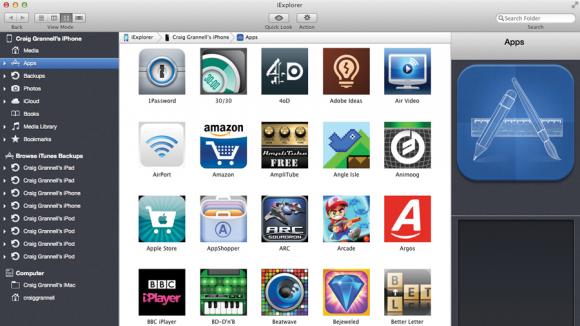
Connect your device to your Mac via USB, select Apps from iExplorers sidebar and select the app in question. Select the Documents and Library folders, Ctrl-click and select Export to Folder. (Alternatively drag them to a Finder folder.)
The contents of these folders can later be sideloaded into a fresh install of the app, meaning you wont lose your progress in a game that doesnt support iCloud, or could get saved compositions from a music-app back to your device with a minimum of fuss.
(Note: if you dont download apps to iTunes on your Mac, sync with it before deleting the apps, so youve a back-up you can later install to your device. You can of course redownload apps from the App Store, but only if they are still made available to you.)
This is a fairly ruthless app-management method, but its useful for keeping installs current and ensuring you have space.
Read more »
The iPhone, iPad and iPod touch are more like appliances than traditional computers - theyre sealed boxes that forever remain as they were the moment you purchased them. You can no more extend their storage capabilities than you can add a new compartment to your fridge-freezer.
A quick look at Apples modern hardware suggests its entire line-up is heading in the same direction, but iOS devices are more restricted than Apples desktops and notebooks. After all, if you need more storage for a MacBook Air, you at least have the option of offloading large documents to an external hard drive (and, of course, then sensibly backing up that data along with the internal drives, either locally or to an online service such as CrashPlan).
But iOS devices arent designed that way. They dont have a USB port or a user-accessible file structure. The intention is that you store everything on the device itself (well, almost everything - services like iTunes Match enable you to grab your music from the cloud).
Therefore, an important tip when it comes to better iOS device storage and management comes at the moment of purchase: buy the model with the most storage that you can afford, unless youre absolutely convinced you wont need it.
Even then, reconsider; be mindful that as technology evolves, demands for storage increase. Retina screens require larger applications, and iOS cameras can shoot HD video, which requires a huge amount of space.
Also, demands on iOS devices are increasing purely on the basis of what they can now do. People frequently shoot and edit video, work with photography, read magazines and compose music on iPads and iPhones. All these things require lots of storage.
If your device gets really full, it alerts you. Also, things stop working. You wont be able to install new apps or shoot video new footage. You may find that updating apps becomes problematic, because the device doesnt have enough space to download, unpack and install updates before deleting older versions.
We offer advice for dealing with such a situation, along with managing iOS storage in general. Note that this isnt intended as a start-to-finish walkthrough, more a series of ideas that can be utilised to free up space.
As ever, we should stress the importance of back-ups before making major changes to iOS devices. Even if youre backing up to iCloud, make the occasional local back-up (select your device in iTunes and click Back Up Now on the Summary page).
Local backups are also useful when it comes to dealing with app data, because you can later use iExplorer to fish out settings and other documents from such a backup, even if those things have long been removed from your device. Also ensure before making any major changes in terms of deleting content that you dont only have said content on your iOS device.
For music, sync your device with iTunes to transfer tracks to your Mac (although you can grab previous purchases from iTunes, if necessary). For photos and movies, transfer them across by attaching your device to your Mac via USB, launching iPhoto, selecting the device and clicking the Import button.
How to manage iOS device storage
1. Check device capacity in iTunes
Although iOS devices no longer require iTunes, Apples desktop app remains useful from a device management standpoint. Connect your device (via USB or over Wi-Fi) and select it from the Devices button. Across the bottom of the window, you see a chart detailing whats taking up room: audio, photos, apps, books and other.If storage is an issue, you could free some up. For example, if youve lots of music or photos on your device, select the relevant tab, uncheck the sync box and then sync your device. The relevant media is removed. You can then perform updates and manage your apps, perhaps free up more space, and later restore your media by resyncing it.
Occasionally, you might find the other section becomes massive. In our experience, this is usually down to you having a lot of in-app data (see Step 3) or failed app updates, which can happen on trying to update without enough free space. Resyncing should help; if not, a restore from a local backup.
2. Discover app sizes
Apps can be massive. Sizes are shown in iTunes and the App Store, but thats the size of the compressed download. Once installed, an apps size can balloon.In iTunes, check app sizes by clicking on the Apps tab and selecting Sort by Size from the pop-up menu at the top of the apps list. Peruse the list, and if there are apps or games you no longer use, consider deleting them. You can do so by clicking Remove in iTunes; when youve done so for all apps youd like to delete, click Sync.
Alternatively, tap-hold an app on your device to make all the icons jiggle and, for each, tap the cross icon and then Delete to remove it.
3. Examine app data
Open the Settings app on your device and in the General category, select Usage. You see available and used storage and a list of apps. These are ordered by the total amount of space they require, including app data.Newsstand and similar apps tend to be storage-hungry. Their containers might be small, but the actual magazines rarely are. If you want to see how much space an apps data is using, tap the app in the list and look at the Documents & Data figure.
If youve several such apps taking up loads of room you need, consider deleting data. For example, if you subscribe to magazines, delete old issues from within each app. You can usually redownload issues later if you need to. If you fancy taking a speedy option and dont have a capped broadband connection, deleting a Newsstand app takes all its data with it. You can then download a fresh copy from the App Store and the latest issue.
Magazine and book apps arent the only storage culprits, note. Dropbox can (optionally) store documents locally (by flagging them as favourites) and some video apps have download capability, so check those too.
4. Back-up app content
Should you no longer use a game or creative app, but think you might one day return to it, download its data to your Mac using the free version of iExplorer (macroplant.com/iexplorer).Connect your device to your Mac via USB, select Apps from iExplorers sidebar and select the app in question. Select the Documents and Library folders, Ctrl-click and select Export to Folder. (Alternatively drag them to a Finder folder.)
The contents of these folders can later be sideloaded into a fresh install of the app, meaning you wont lose your progress in a game that doesnt support iCloud, or could get saved compositions from a music-app back to your device with a minimum of fuss.
5. Use last-chance folders
If you tend to frequently download new apps, chances are some fall out of favour, but you might not necessarily know which. Create date-based folders (07-2013, say) and place apps within that you dont think you use any more. If you find yourself using one, rescue it from the folder. Otherwise, delete the folders contents after a few months, first backing up app data as necessary.(Note: if you dont download apps to iTunes on your Mac, sync with it before deleting the apps, so youve a back-up you can later install to your device. You can of course redownload apps from the App Store, but only if they are still made available to you.)
This is a fairly ruthless app-management method, but its useful for keeping installs current and ensuring you have space.

Thursday, March 26, 2015
Wi Fi is now free when you visit the UK if you have a MasterCard
Using your phone or tablet when youre overseas can be pretty pricey. Luckily, for everything else theres MasterCard, as you can now enjoy free Wi-Fi in the UK thanks to the card in your wallet.

Credit card and payment services company MasterCard has signed up with British Wi-Fi provider The Cloud for free Internet connection in thousands of public places when you come to visit. Download the MasterCard Priceless London WiFi mobile app, available today from Google Play or the Apple App Store, and youll be wirelessly connected to the Web faster than a politician spotting 20p on the floor (thats British for "very quickly") without having to pay out a single pound, shilling or queenpence (thats British for "money").
So when youre on your holiday or travelling for business, you can check email, catch up with your social media friends or even just find your way about without racking up huge data roaming charges or burning through your phone plans data allowance.
The ability to enjoy music and video streaming services over Wi-Fi also saves you from having to pre-load your tablet with films, ebooks or other entertainment for the trip. And it could help you sidestep extortionate Wi-Fi fees from your hotel too.
The Cloud is a company providing Wi-Fi hotspots around the UK in public places including shops, bars, food places and train stations. For the benefit of international readers who may not be familiar with UK institutions, those venues include WHSmith (books, magazines, dirty carpets); Greggs (two sausage rolls for a pound); Pret, Caffé Nero and Eat (skinny lattes, skinnier sandwiches); Marks & Spencer (posh food, nice clothes, sturdy underwear); JD Wetherspoons (cheap beer, cheap meals, broken dreams); and PizzaExpress (students on dates).
The app also offers deals and promotions based on where you are with MasterCards Priceless Cities programme. If you are planning on using the app, its important to note that MasterCard says you have to download it and register for the service while youre still at home, before you travel -- so plan ahead and contact MasterCard for more details.
Read more news from mobile world
Read more »
Credit card and payment services company MasterCard has signed up with British Wi-Fi provider The Cloud for free Internet connection in thousands of public places when you come to visit. Download the MasterCard Priceless London WiFi mobile app, available today from Google Play or the Apple App Store, and youll be wirelessly connected to the Web faster than a politician spotting 20p on the floor (thats British for "very quickly") without having to pay out a single pound, shilling or queenpence (thats British for "money").
So when youre on your holiday or travelling for business, you can check email, catch up with your social media friends or even just find your way about without racking up huge data roaming charges or burning through your phone plans data allowance.
The ability to enjoy music and video streaming services over Wi-Fi also saves you from having to pre-load your tablet with films, ebooks or other entertainment for the trip. And it could help you sidestep extortionate Wi-Fi fees from your hotel too.
The Cloud is a company providing Wi-Fi hotspots around the UK in public places including shops, bars, food places and train stations. For the benefit of international readers who may not be familiar with UK institutions, those venues include WHSmith (books, magazines, dirty carpets); Greggs (two sausage rolls for a pound); Pret, Caffé Nero and Eat (skinny lattes, skinnier sandwiches); Marks & Spencer (posh food, nice clothes, sturdy underwear); JD Wetherspoons (cheap beer, cheap meals, broken dreams); and PizzaExpress (students on dates).
The app also offers deals and promotions based on where you are with MasterCards Priceless Cities programme. If you are planning on using the app, its important to note that MasterCard says you have to download it and register for the service while youre still at home, before you travel -- so plan ahead and contact MasterCard for more details.
Read more news from mobile world
Best PDF Reader Apps for Android Both Free and Paid Apps
Below is a list of the best free and paid PDF Reader apps for Android. It turns out finding a good Android PDF reader is harder than it sounds.

Running a search for “PDF Reader” or “PDF Viewer” in the Android Market turns up hundreds of results, and finding one that has all the features you’re looking for can take a lot of time and research, especially when the search results seem list anything with the word PDF in the title or description.
This list isn’t by any means all the PDF Reader apps for Android, just the best ones I’ve tried over the past year on various Android tablets, and even on the rooted Nook Touch ebook reader. Feel free to add your own PDF Reader app suggestions in the comments section below.
I’ve included links to the Android Market so that you can jump over and read the reviews and download them if you want, along with the Amazon Appstore when available. You can probably find most of them at other app stores like SlideMe and GetJar too, and websites that host apk files like Freeware Lovers.
Adobe Reader – This app used to be really basic until Adobe updated it, and it’s now one of the best PDF apps for Android. For features it has search, text re-flow with variable font sizes, pinch zooming, on-screen markup, notes, highlights, a sharing feature for sending the file to email or another app like Google Docs or Dropbox, and more. Free at Android Market and Amazon.
EBookDroid – This is a nice basic PDF viewer that is a little smoother and quicker than some of the other free apps. It has pinch zooming, a zoom dial, go-to-page with location slider, table of contents, night mode, option for 2 page landscape, and a few other misc settings. Free at Android Market.
Aldiko Book Reader – Aldiko is more of an ePub reading app, but they added support for PDF files awhile back and it does a serviceable job displaying PDFs. It doesn’t have any advanced features like it does with ebooks, just search, table of contents, pinch-zooming, and go to page. It has on-screen functions for copying, sharing, and looking up words in the dictionary, but with PDFs this feature tends to have a hard time detecting the beginning and ending of a word properly. Free at Android Market and Amazon.
Bluefire Reader – Like Aldiko, Bluefire is more of an ePub reader but serves as a decent PDF viewer as well. For features it has table of contents, a page slider, night mode, pinch zooming, and different page turn settings. Sometimes you can bring up the on-screen functions for copying text and adding bookmarks, which double as highlights and text notes, but this doesn’t always seem to work with PDFs. You can still add bookmarks and notes to individual pages, though, so that makes it the best option as a free app for notes and bookmarks. Free at Android Market.
APV PDF Viewer – A decent free PDF viewing app with on-screen zooming icons and different zoom settings, go-to-page, you can change to various text and background colors, search, and some other advanced settings. Free at Android Market.
ezPDF Reader – Whether it be a tablet or a hacked Nook Touch, ezPDF is my PDF Reader app of choice, and it’s the most popular paid PDF app for Android. It has a ton of features, including text re-flow, fit text to column, pinch zooming, text-to-speech, play embedded video and audio, active hyperlinks, thumbnail view, bookmarks, add notes, highlights, on-screen annotations, and plenty more. Costs $1.99 at Android Market and Amazon.
RepliGo Reader – I haven’t used this app personally but have heard good things about it. Plus it seems to be the most popular and well-rated paid PDF Reader app aside from ezPDF Reader. Has lots of features, especially when it comes to annotating: Add highlights, cross outs, underlines, sticky notes, arrows, lines, ovals, rectangles, freehand drawings and text boxes. Integrates with Gmail, Dropbox, and Evernote. Costs $4.99 at Android Market and Amazon.
Mantano Reader – I briefly tried the free trial version of this app and it has a fair amount of PDF features. It’s kind of expensive, though, so make sure to try the trial version first. PDF features include pinch zooming, margin removal, adjustment to one column for multi-column documents, TOC, word selection with a long press, copy, TTS, dictionary, search, add notes, highlights, bookmarks, on-screen scribbles. Costs $7.49 at Android Market and Amazon.
Read more »
Running a search for “PDF Reader” or “PDF Viewer” in the Android Market turns up hundreds of results, and finding one that has all the features you’re looking for can take a lot of time and research, especially when the search results seem list anything with the word PDF in the title or description.
This list isn’t by any means all the PDF Reader apps for Android, just the best ones I’ve tried over the past year on various Android tablets, and even on the rooted Nook Touch ebook reader. Feel free to add your own PDF Reader app suggestions in the comments section below.
I’ve included links to the Android Market so that you can jump over and read the reviews and download them if you want, along with the Amazon Appstore when available. You can probably find most of them at other app stores like SlideMe and GetJar too, and websites that host apk files like Freeware Lovers.
Best Free Android PDF Apps
Adobe Reader – This app used to be really basic until Adobe updated it, and it’s now one of the best PDF apps for Android. For features it has search, text re-flow with variable font sizes, pinch zooming, on-screen markup, notes, highlights, a sharing feature for sending the file to email or another app like Google Docs or Dropbox, and more. Free at Android Market and Amazon.
EBookDroid – This is a nice basic PDF viewer that is a little smoother and quicker than some of the other free apps. It has pinch zooming, a zoom dial, go-to-page with location slider, table of contents, night mode, option for 2 page landscape, and a few other misc settings. Free at Android Market.
Aldiko Book Reader – Aldiko is more of an ePub reading app, but they added support for PDF files awhile back and it does a serviceable job displaying PDFs. It doesn’t have any advanced features like it does with ebooks, just search, table of contents, pinch-zooming, and go to page. It has on-screen functions for copying, sharing, and looking up words in the dictionary, but with PDFs this feature tends to have a hard time detecting the beginning and ending of a word properly. Free at Android Market and Amazon.
Bluefire Reader – Like Aldiko, Bluefire is more of an ePub reader but serves as a decent PDF viewer as well. For features it has table of contents, a page slider, night mode, pinch zooming, and different page turn settings. Sometimes you can bring up the on-screen functions for copying text and adding bookmarks, which double as highlights and text notes, but this doesn’t always seem to work with PDFs. You can still add bookmarks and notes to individual pages, though, so that makes it the best option as a free app for notes and bookmarks. Free at Android Market.
APV PDF Viewer – A decent free PDF viewing app with on-screen zooming icons and different zoom settings, go-to-page, you can change to various text and background colors, search, and some other advanced settings. Free at Android Market.
Best Paid PDF Readers for Android
ezPDF Reader – Whether it be a tablet or a hacked Nook Touch, ezPDF is my PDF Reader app of choice, and it’s the most popular paid PDF app for Android. It has a ton of features, including text re-flow, fit text to column, pinch zooming, text-to-speech, play embedded video and audio, active hyperlinks, thumbnail view, bookmarks, add notes, highlights, on-screen annotations, and plenty more. Costs $1.99 at Android Market and Amazon.
RepliGo Reader – I haven’t used this app personally but have heard good things about it. Plus it seems to be the most popular and well-rated paid PDF Reader app aside from ezPDF Reader. Has lots of features, especially when it comes to annotating: Add highlights, cross outs, underlines, sticky notes, arrows, lines, ovals, rectangles, freehand drawings and text boxes. Integrates with Gmail, Dropbox, and Evernote. Costs $4.99 at Android Market and Amazon.
Mantano Reader – I briefly tried the free trial version of this app and it has a fair amount of PDF features. It’s kind of expensive, though, so make sure to try the trial version first. PDF features include pinch zooming, margin removal, adjustment to one column for multi-column documents, TOC, word selection with a long press, copy, TTS, dictionary, search, add notes, highlights, bookmarks, on-screen scribbles. Costs $7.49 at Android Market and Amazon.
Smartphones tips and tricks Tablets tips and tricks Smartphones reviews
Smartphones rooting Tablets reviews News from mobile world
Smartphones rooting Tablets reviews News from mobile world
Subscribe to:
Posts (Atom)